How to invite team member
Learn how to invite members and manage invitations
How to invite a member
Open Company → Members.
Click Invite member.
Enter the employee email and select a role.
Send the invitation.
Available roles:
Admin;
Group Admin;
Accountant;
User.
The Owner role is assigned separately.
After sending, the invitation appears in the table with Pending status.
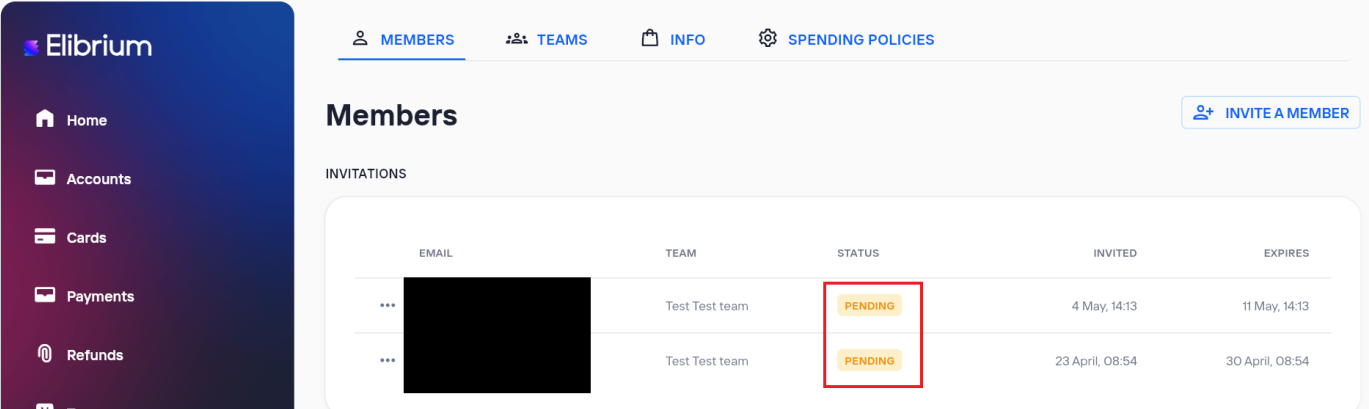
Available actions:
Resend — send the invitation again;
Cancel — cancel the invitation.
Invitation validity
Invitations are valid for 7 days from the send date.
After expiration, the user will no longer be able to accept the invitation using the old link.
Resend invitation
The Resend action:
sends a new invitation link;
extends the invitation for another 7 days.
Important note:
the assigned role does not change after Resend.
Change the role before the invitation is accepted
Only one active invitation can exist for the same email address.
If you need to invite the user with a different role:
Cancel the current invitation using Cancel.
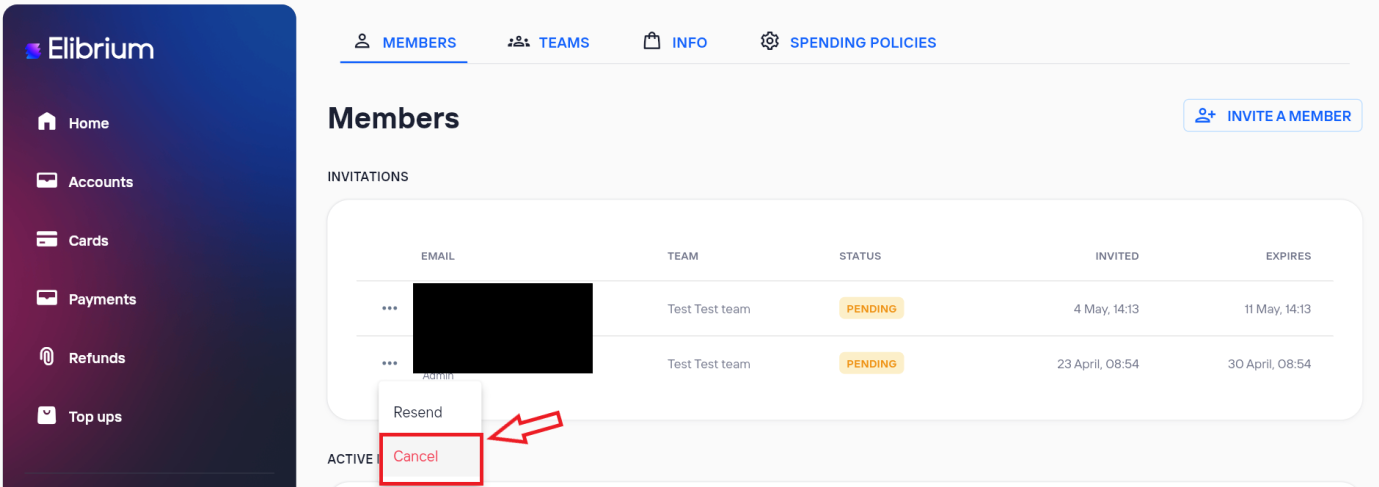
Send a new invitation with the required role.
Related articles